
Guide
Changing the words on your site
Click the words on any page, type the change, then publish it. For anything you can't change, leave us a comment.
Open your site
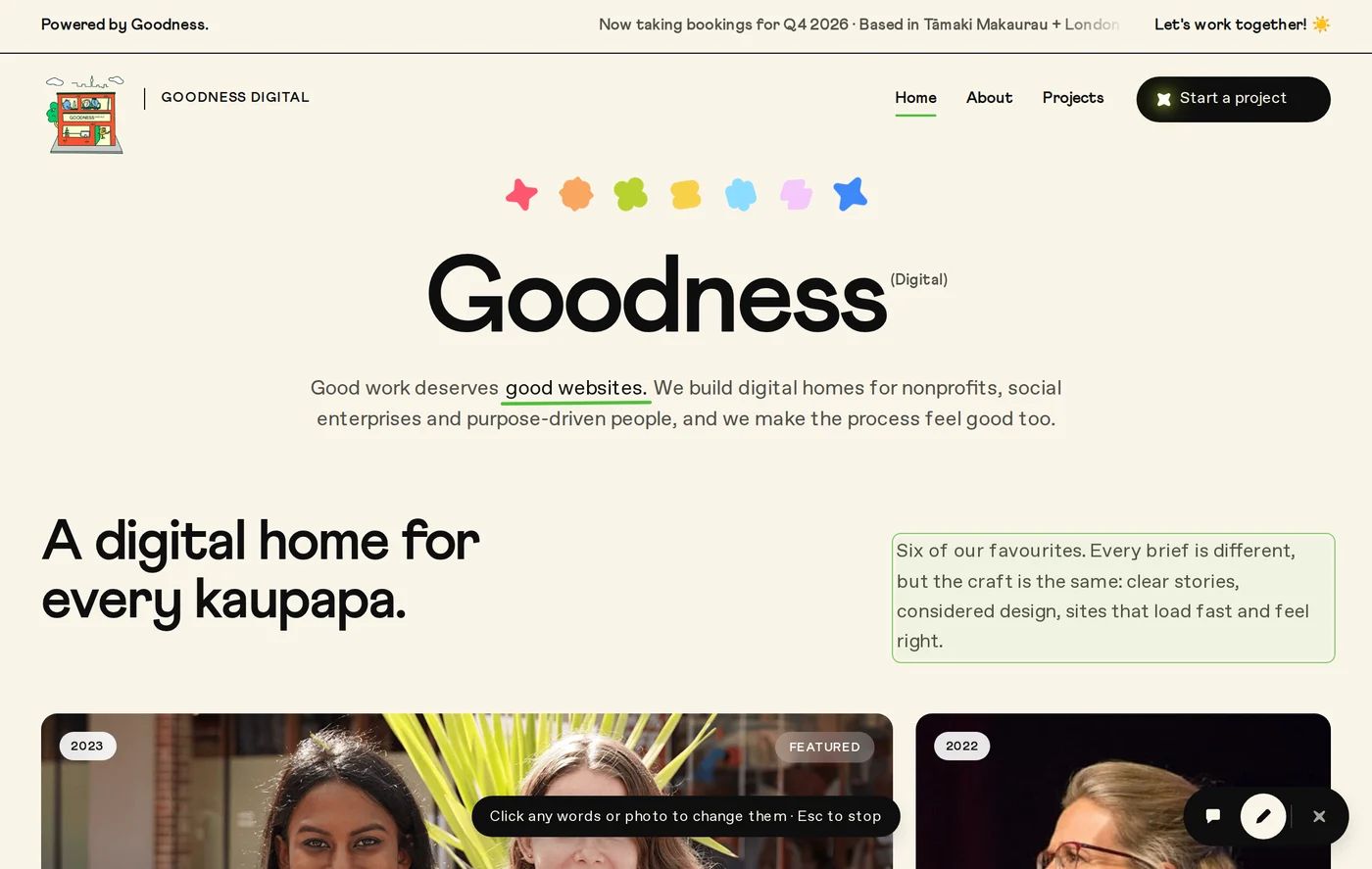
- In Your Hub, press Comment on your site. Your site opens in a new tab with a black ✦ star in the bottom corner.
- Click the star. The first time, it asks you to sign in. Use the email address your organisation added you with. Sign-in opens in a new tab, then brings you straight back.
- Press the pencil, Edit. Everything you can change lights up green as you move over it.
Once you've signed in, the star stays with you on every page of your site, in any tab, including links you open from an email. To see your site the way everyone else does, open the tools and press the eye with a line through it, Hide on this site. Press Comment on your site in Your Hub to bring the star back.
Change the words
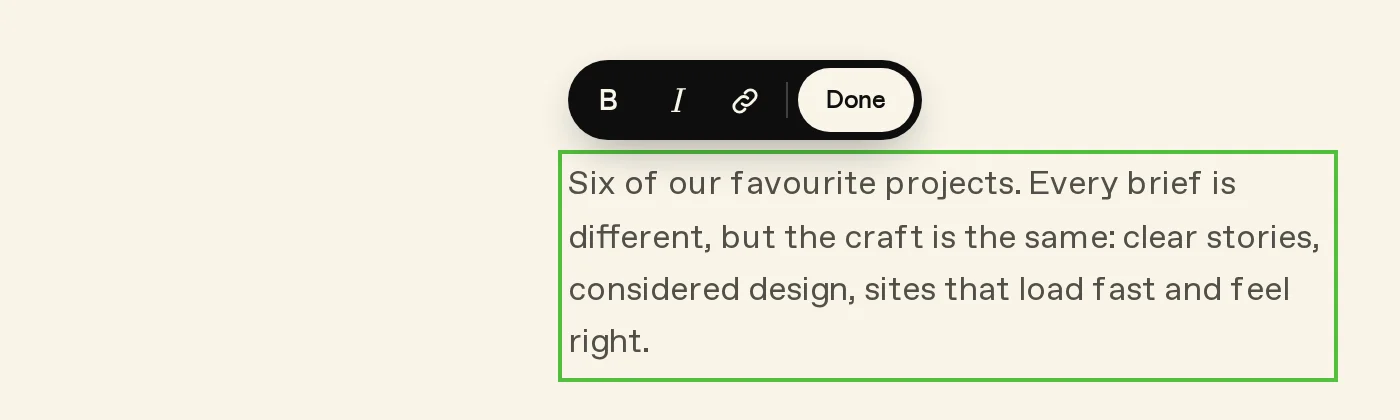
- Click the words you want to change and type, the same as in an email.
- The bar above them has B for bold, I for italic and a link button. Press Done when you're finished with that bit.
- Go on to the next change. You can make as many as you like, on as many pages as you like.
To add a link, select the exact words you want people to click, then press the link button and paste the web address. The link covers what you selected and nothing more, so check you've got the whole of each word.
How the page looks is set by its design, so the editor can't change it: a paragraph your site always shows in bold, the size of a heading, the colours or the layout. Pressing B won't take that bold away. For these, leave us a comment (see below).
Some parts, like your footer, show on every page. When you click one, a note says Shows on every page, so you know a change there changes it everywhere.
Publish it
Nothing reaches your site until you publish. The bar along the bottom counts your changes, for example 1 change, not live yet. Press Undo to take back the last one, or Discard to throw them all away.
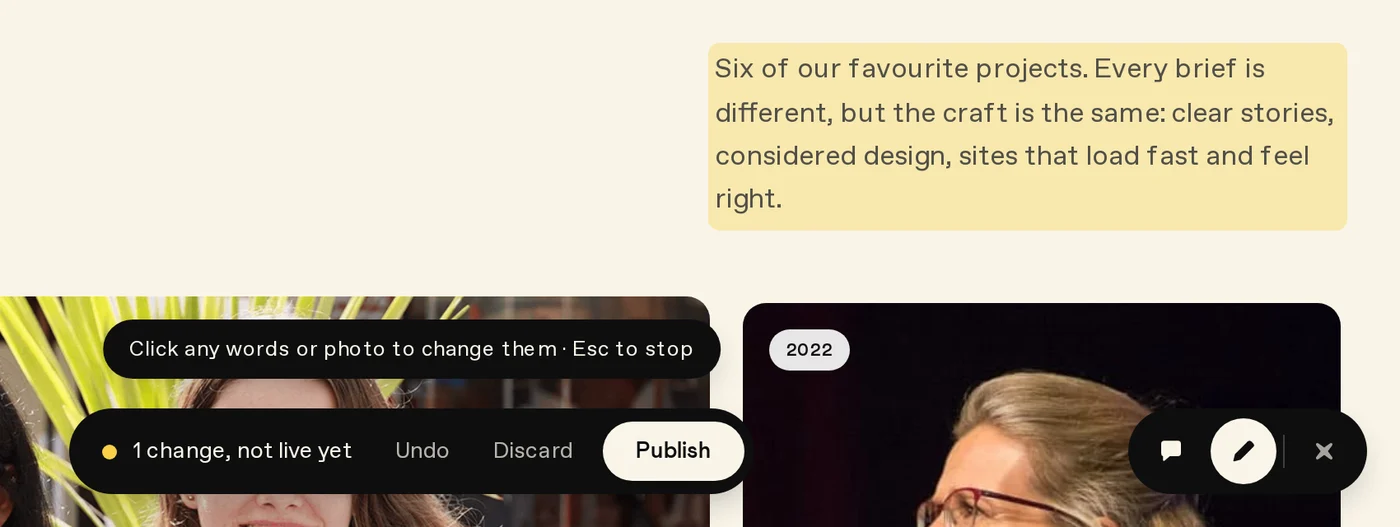
When you're happy, press Publish. The bar says Going live for about a minute, then Live. If something looks wrong, press Undo last publish and the page goes back to how it was.
If a change turns pink
A change shaded pink couldn't go live, because the words underneath it changed after you started, for example because someone else published a change to the same part. The bar tells you how many. Press Discard, then click the words and make the change again on the new version.
When someone else is editing too
If someone else from your organisation has the editor open anywhere on your site, a small circle with the first letter of their name sits above the star. Click it to see who, which page they're on and how many changes they haven't published yet.
Their changes show on your page shaded grey, and update by themselves every few seconds. You can't edit a grey part while it's theirs, and your Publish only sends your own changes. If they leave without publishing, click the grey part and press Take it over to make it yours.
Change a photo
Click a photo and choose Replace photo to pick a new one from your computer, or Describe this photo to change the words read out to people who can't see it. Photos publish the same way as words.
For anything you can't change, leave a comment
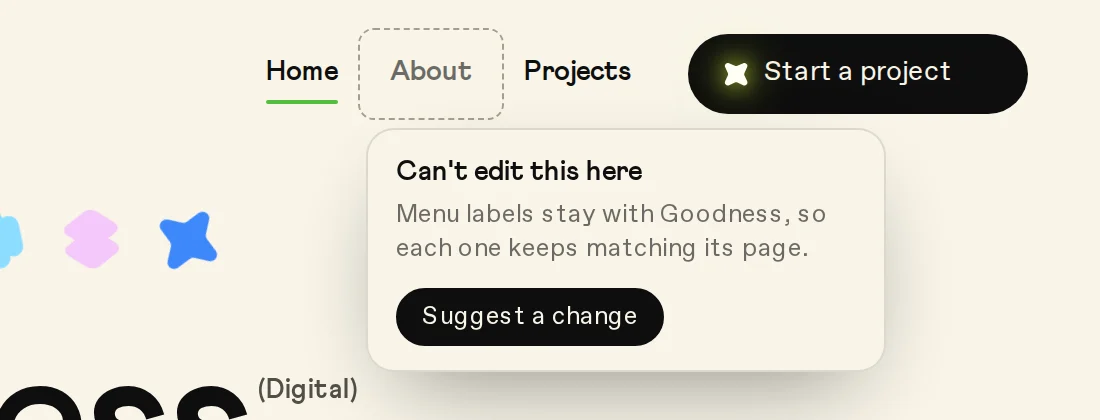
A few parts stay with Goodness, like menu labels. Move over one and it outlines with a dashed line and a card that says Can't edit this here. Press Suggest a change, and the comment is started for you.
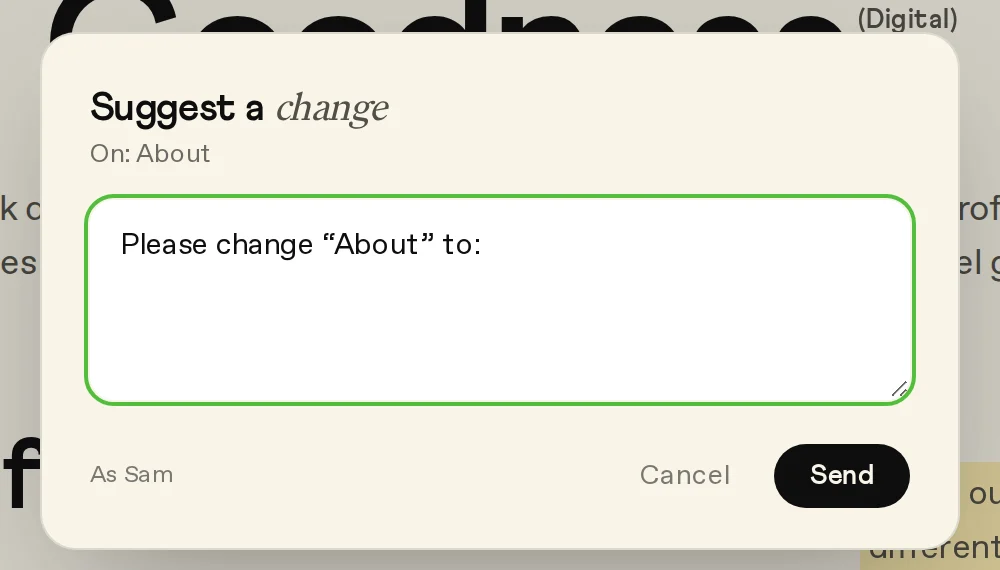
For anything else about how a page looks, press the speech bubble next to the pencil, click the part and tell us what you'd like. Every comment comes to Goodness, and you can follow it in Comments in Your Hub.
Only Admins and Authors can edit
If you only see the speech bubble, your role is Viewer. Ask an Admin at your organisation to change it, or comment on what you'd like changed and we'll do it.